
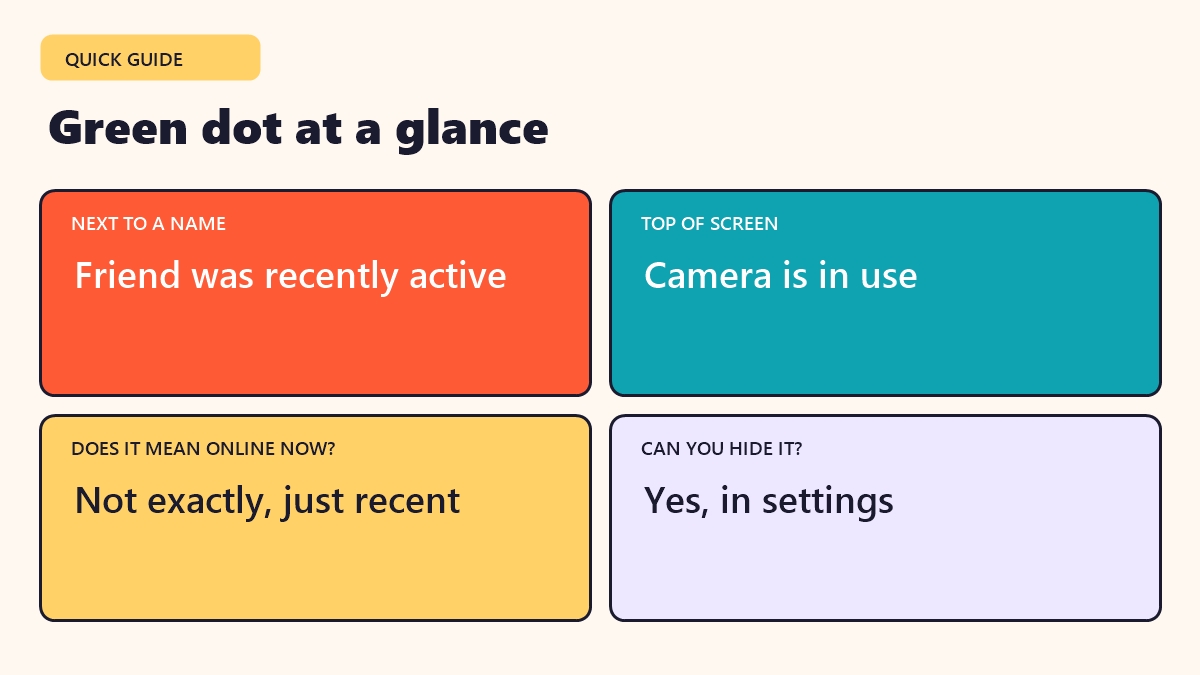
Quick answer: A green dot on Snapchat has two different meanings, depending on where it appears. Next to a friend’s name, it means they were recently active on the app. At the very top of your screen, it means the app is currently using your camera.
Featured image: Photo by Swello on Unsplash
You open Snapchat and spot a small green dot, either beside a friend’s name or at the very top of your screen. The two dots look similar but mean completely different things. This guide explains both, so you always know what you are looking at.
In this guide
What does the green dot mean on Snapchat?
There are two separate green dots you might see, and it helps to know which one you are looking at.
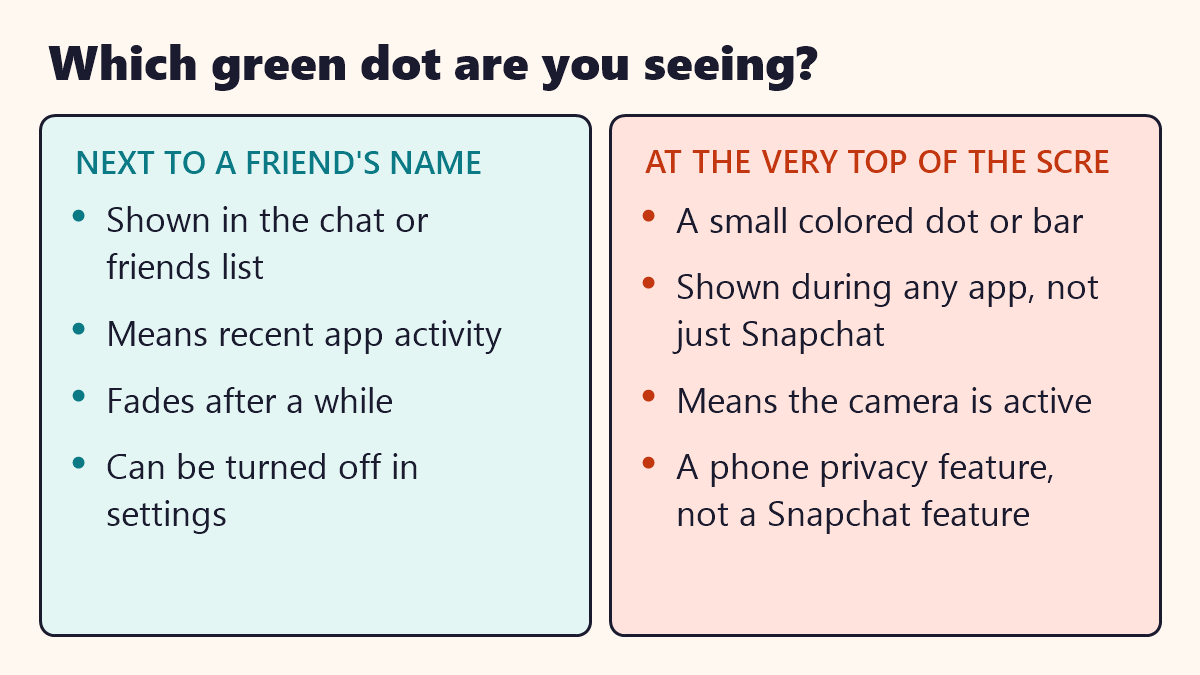
- Next to a friend’s name in your chat list or friends list, a green dot means that friend was recently active on Snapchat.
- At the very top of your phone screen, a small green dot means an app, possibly Snapchat, is currently using your camera.
The first is a Snapchat feature. The second is a privacy feature built into your phone itself.
The green dot next to a friend’s name
This dot is part of Snapchat’s activity status. When a friend opens the app, sends a Snap or chats, Snapchat notes that recent activity. A green dot next to their name is a quick way for you to see who has been active lately.
It is easy to misread this as “online right now,” but that is not quite accurate. The dot usually reflects activity within roughly the last day, not the current minute. So a green dot does not guarantee someone is using the app at that exact moment, only that they have been active recently.
How to turn off your own activity status
- Open Snapchat and go to your profile.
- Tap the gear icon for Settings.
- Find “See Me in Quick Add” or activity-related privacy settings, depending on your app version.
- Turn off the option that shares your recent activity with friends.
Once this is off, friends will no longer see a green dot reflecting your recent activity, though you may also lose the ability to see theirs, depending on the version of the app.
The green dot at the top of your screen
This second green dot is different. It is a camera-access indicator, introduced by phone makers as a privacy feature so you always know when an app is using your camera. It is not unique to Snapchat. Many apps, including messaging apps, social media apps and video call tools, can trigger the same dot.
If you see it while using Snapchat, it almost always means the app’s camera screen is open, which is normal when you are about to take a photo or video.
You: Why is there a green dot at the top of my screen?
Friend: That just means an app is using your camera right now. Nothing to worry about.
Comparing the two green dots
| Feature | Next to a friend’s name | Top of the screen |
|---|---|---|
| What it shows | Recent activity | Camera in use |
| Where it comes from | Snapchat app | Your phone’s operating system |
| Appears for | One friend at a time | Any app using the camera |
| Can you turn it off | Yes, in Snapchat settings | Only by closing the camera or app |
When to pay attention
If you notice the camera-access dot appearing when you are not actively taking a photo, it is worth checking which app is open. Most of the time it is harmless, triggered by a filter or preview loading in the background, but it is still a useful habit to glance at your screen now and then.
Other colored dots and symbols on Snapchat
- Yellow heart: you and a friend are each other’s number one best friend.
- Red heart: you have been number one best friends for two weeks in a row.
- Fire emoji: you are on a Snapstreak with that friend.
- Gray dot or icon: usually shows an unopened Snap or chat, separate from activity status.
Snapchat uses a lot of small icons like these, and it is easy to mix them up at first glance.
Common mistakes
- Assuming a green dot means someone is online right now. It usually just means recent activity.
- Panicking about the camera dot. It is normal and shows up for many apps, not a sign of a hack.
- Mixing up the two dots. Check the location on your screen to know which one you are seeing.
- Forgetting the setting exists. If you want more privacy, you can turn off your own activity status.
Key takeaways
- A green dot next to a name shows recent Snapchat activity, not necessarily being online right now.
- A green dot at the top of your screen shows your phone’s camera is in use.
- The camera dot is a phone privacy feature, not something unique to Snapchat.
- You can turn off your own activity status in Snapchat’s settings.
- Other colors and symbols, like hearts and fire emoji, mean different things entirely.
Why the activity dot sometimes feels inconsistent
Snapchat’s activity status depends on each user’s individual privacy settings, which many people adjust without realizing it affects what friends see. If a green dot seems to appear and disappear unpredictably for the same friend, checking whether they recently changed their own activity-sharing setting usually explains it.
A quick reminder on reading too much into it
A missing green dot does not necessarily mean someone is ignoring you or avoiding the app; it most often simply reflects their personal privacy choice, which has nothing to do with how they feel about any specific conversation.
Frequently asked questions
What does the green dot mean on Snapchat?
Next to a friend’s name, it means they were recently active on the app. At the top of your phone screen, it means your camera is currently being used.
Does the green dot mean someone is online right now?
Not exactly. It usually means they were active within the last day or so, not that they are using the app this very second.
Can I turn off the green activity dot?
Yes. You can turn off your own activity status in Snapchat’s settings so others cannot see when you were last active.
Is the green dot the same on every phone?
The camera-access green dot at the top of the screen comes from your phone’s operating system, so it appears the same way across many apps, not just Snapchat.
Why does my camera indicator turn on when I am not taking a photo?
Many apps briefly access the camera to load a preview or a filter, which can trigger the indicator even if you have not taken a picture yet.